

How do I import products into the cart from a CSV?
You can quickly add multiple products to your basket using our CSV import tool.
When you're logged into your account you should see the CSV import button in the checkout.
CSV Import Button
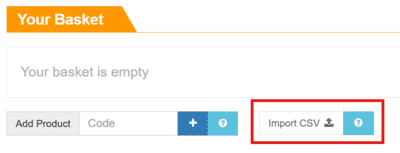
Click it to open your computers file browser and then select a CSV file.
Your CSV should have at least one column containing our product codes. You can also optionally add a column for quantity and price comparison. If you don't add a quantity column, one of each item will be added. Other columns can be present but won't be used.
The price column is for comparison only and won't affect the price you pay which is always the current price.
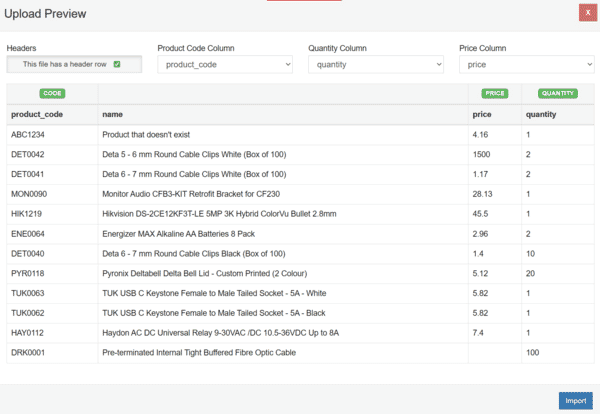
Once uploaded you're presented with the CSV import preview screen.
CSV Import Preview
Header select button
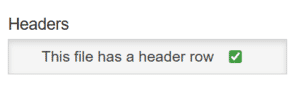
Select whether your file has a header row.
If your file has names at the top of each column (see image below), leave this checked. Otherwise, uncheck it and all rows will be treated as products.
CSV file with headers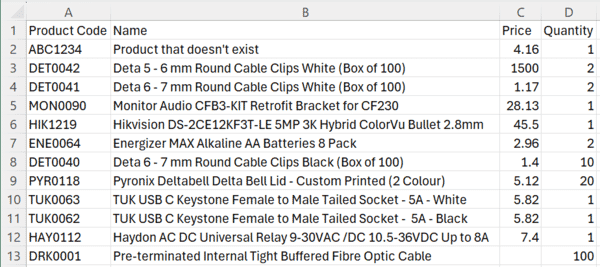
When we upload your CSV file, we will try to detect the columns from the name in the header. If we can't automatically select the columns, chose the relevant options from the dropdown fields at the top of the preview window.
Column selector with headers.

Column selector without headers.
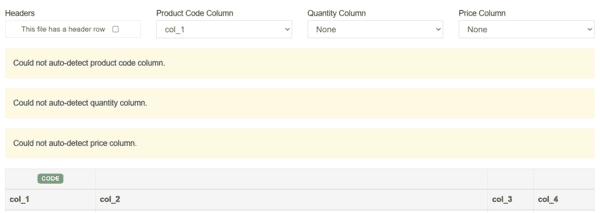
When you're ready, select import.
Completed Import Preview
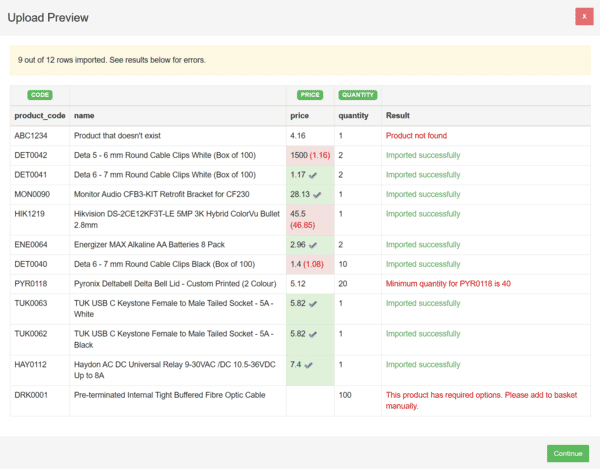
If you have a price column, price differences will be highlighted. Any rows that can't be imported will be shown in the preview.
Your products are now imported.
Click continue to return to your basket.
